
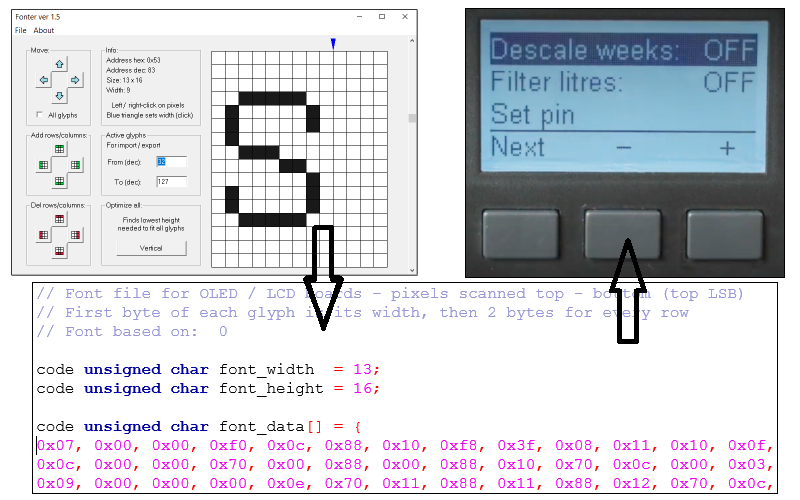
FONTER software (rev 1.5)
| Source code (CodeBlocks): | fonter_1.5.zip |
| Executables (Windows): | fonter_1.5.exe |
NOTE: This was my first usable Win32 app. Limits are: up to 256 glyphs, up to: 32x64 pixels. Enjoy!
Some years ago, while designing my first pixelated LCD display, I realised the need to compile the fonts into the code to be able to communicate with the user - LCD displays, generally, have no fonts built in and you just tell them what pixels you want to activate. After some looking online, I was not able to locate anything useful. What I needed was the ability to try different fonts, edit them, change the spacing if needed. All programs were either commercial, only working with some specific LCDs or limited to predefined (and horrible looking) fonts.
I decided to write my own tool for the job using some knowledge of Windows programming (Win32).
Feel free to tinker with source files (I am not Windows developer - keep this in mind), rewrite them if you wish.
The app allows you to either import Windows fonts (to use them as a basis of your design) or open fonts you created before (they are stored in proprietary .ftr binary file). The Windows import is done through GetGlyphOutline function (from wingdi.h) that sometimes gives wrong results - there is a limit to max size of the glyphs imported and does not work for some font types. Also some antialiased fonts might look a bit funny - our app does not allow for shades of grey, all needs to be either black or white. You have to play with it - most standard fonts import nice enough and require no manual interventions.
To scroll between glyphs (individual "letters") just use a scroll bar to the right or mouse scroll. Info box will tell you the current glyph number and "Size" shows max size used by the font. Please note that import / export is limited to the active range only - I found that some fonts have some rubbish on addresses above 127, so by default I limit the active range to 32 - 127 (printable ASCII). Scrolling, however, allows you to go all the way from 0 - 255. If you need more adresses, feel free to add them - there is no theoretical limit apart from memory size.
As some fonts are proportional (glyphs have different widths) - this information is shown by a blue triangle at the top of the glyph. You can drag it left - right to change it - the width value will be encoded into output C file separate for each of the glyphs.
Each of the glyphs can be moved left-right-up-down. You can also add/delete rows/columns to the whole of the design.
There is an automatic vertical optimisation button - it will find minimum vertical size to fit all the glyphs. After using it you can manually add rows to make it fit into standard glyph height you want to get (generally multiples of 8).
To edit glyphs - just left click to make pixel black, right click to erase the pixel.
After you are happy with your glyphs, remember to save them for the future (into .ftr binary, it can only be open back with Fonter) and then export it. This will create a "font.c" file with all possible versions of the glyph matrixes I used in the past - obviously you only copy a part that you need. If you need any other format, you will have to rewrite the output_font function and recompile it all. Again only glyphs with addresses within active range will be exported.
I used this app in all my projects for the last 10 years - mostly to create data for C compiler (once for Verilog).
TIPS:
Graphical representations of letters are called glyphs.
Fonts come as Serif (like Times New Roman) or Sans Serif (Arial, Calibri). To me Sans Serifs are better (less cluttered) for Embedded.
Fonts come as proportional (glyphs with different widths - my pick) or monospaced (like a typewritter).
Even if you use proportional fonts for letters always make sure that numbers are monospaced. This saves a lot of work with justification of numbers and is easier to read.